
Network License Refresh ProcEdure
1. On the Server…
2. Go to location: C:\Program Files\GibbsCAM\GibbsCAM NLO Server 2024 > Double click the Registration tool. Run as Administrator.
3. Run Registration Tool in the GibbsCAM Licensing Utility dialog.
4. GibbsCAM Server License Registration Tool should open. Enter the Product Code in the dialog.
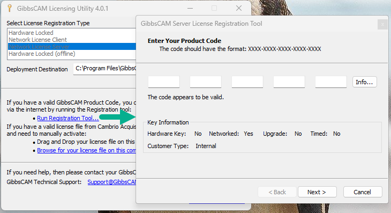
GibbsCAM Licensing Utility
5. After seeing “The code appears to be valid” press Next.
6. Enter Registration Information and press Next.
7. Review the License Registration Data and press Finish.
8. A License Deployment Status window should open, saying the license file successfully deployed. Press OK.
9. Press Yes to restart the RLM Windows Service message.
10. Next, verify a service called "GibbsRLMServer" is installed. Go to Services and verify GibbsRLMServer is Running.
11. Verify that the service is running correctly on the server through the Reprise License Server Administration page which your server will be hosting. The address for that is: http://YOURSERVERNAME:5054
***YOURSERVERNAME is your Server Computer name.
12. Log in using admin as username and admin as password. Press the Status button to check. If no servers are running, go the Services on your computer, select GibbsRLMServer. Stop the service, then Start the service. Verify it started to run.
13. On the Client: After Installing GibbsCAM, Launch GibbsCAM. It will bring up a window with the blue link to run the registration tool. Click Run Registration tool. Enter your product code and continue until you get a successfully deployed message. GibbsCAM will continue to launch. If you have questions, please contact us.
