
Installing & Activating Network License (Reprise)
Download and start installing the latest GibbsCAM NLO server on the server machine from the link provided in the announcement email.
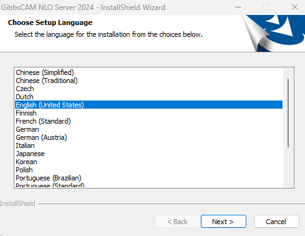
Installer should correctly detect the system’s language and select it as shown in the following dialog:
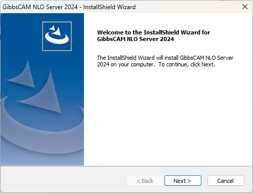
Next, InstallShield Wizard should open, press Next as shown in the following dialog:
Accept the Terms and Conditions and press Next.
The default location for Installation is C:\Program Files\GibbsCAM\GibbsCAM NLO Server 2024 Press Next.
Finish the installation.
Go to location: C:\Program Files\GibbsCAM\GibbsCAM NLO Server 2024 > Double click open the Registration tool. Run as Administrator.
Run Registration Tool in the GibbsCAM Licensing Utility dialog.
GibbsCAM Server License registration Tool should open. Enter the Product Code in the dialog.
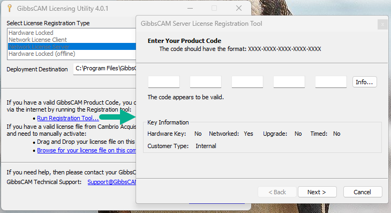
After seeing “The code appears to be valid” press Next.
Enter Registration Information and press Next.
Review the License Registration Data and press Finish.
A License Deployment Status window should open, saying the license file successfully deployed. Press OK.
Press Yes to restart the RLM Windows Service message.
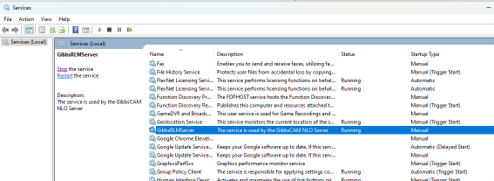
Next, is to verify a service called "GibbsRLMServer" is installed. Go to Services and verify GibbsRLMServer is Running.
Refer to Troubleshooting section if you have any issues.
Verify that the service is running correctly on the server through the Reprise License Server Administration page which your server will be hosting. The address for that is:http://YOURSERVERNAME:5054 YOURSERVERNAME is your Server Computer name.
Log in using admin as username and admin as password. Press the Status button to check. If no servers are running, go the Services on your computer, select GibbsRLMServer. Stop the service, then Start the service. Verify it started to run.
Go back to the webpage and refresh the page. Log-in again if need be. Press Status to see it running. See screenshot below for reference.
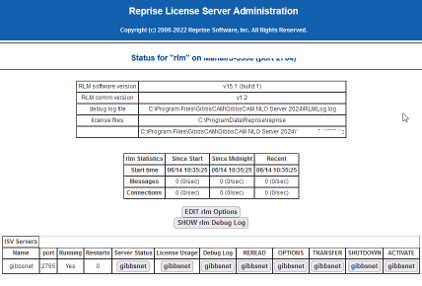
Once the server starts running correctly, remember to change the password on Reprise License Server Administration page. Complete this within ten minutes to avoid getting error messages/connection drops while GibbsCAM is running.
Open GibbsCAM (client machine)
Run the Registration Tool, enter the same Product code used for activating Server license.
Code should appear valid, press Next.
License Registration Data is seen, press Finish to apply the license.
If there is an error (please report), just copy paste the license from .lic file from location C:\Program Files\GibbsCAM\GibbsCAM NLO Server 2024 to C:\ProgramData\CAMBRIO\GibbsCAM\LicenseData\240.0.
Reopen GC > check out, GibbsCAM opens.
Refer section Troubleshooting if you have any issues.
Troubleshooting:
If you are having trouble getting the service to run, try getting a fresh installation of the NLO software.
Go to Services list and stop the service (GibbsRLMServer) from running
Go to the Control Panel > Apps and Features and uninstall the GibbsCAM NLO Server 2024
Reinstall the Gibbs NLO software
Re-run the Registration Tool to generate a new license file. Note: Do not use an existing license file.
2. There should be no issues running GibbsCAM on the client machine if there is a valid license file, and the Client can see/communicate with the Server service. If not, run the following for port numbers 2764 and 2765:
Open Windows PowerShell through the Start menu
Use the command "test-netconnection IPAddress -port xxxx"
Replace "IPAddress" with your server's IP Address
Replace xxxx with a port number.
Result should show the test as successful.
Try reconnecting the devices if the connection is unsuccessful.
